Scheduled channels
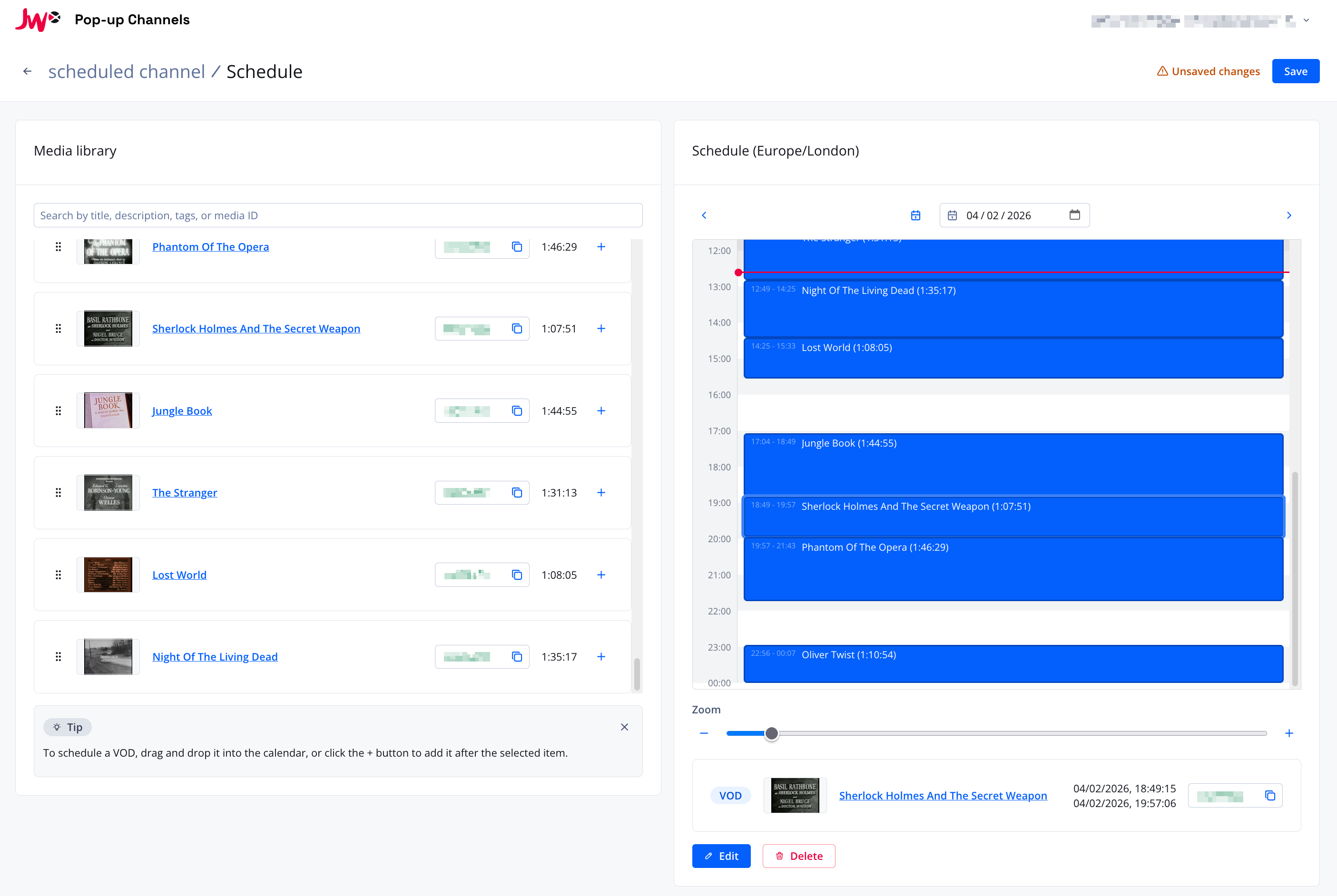
The scheduled channel mode allows you to schedule content from your JWX property to play at specific times using a drag-and-drop interface.
Creating a scheduled channel
See Creating a scheduled channel.
Updating the schedule
You can make changes to the schedule using the interface at https://app.fast.jwp.services.
For details on logging into the Pop-up Channels front-end, please see Accounts.
Once you are logged in, you can select your channel from the channels list, and then navigate to "Edit schedule".
Media library
On the left side of the scheduler, you will see a media library with the following tabs:
- VODs - a list of VODs from your JWX property. You can use the search bar to find a specific VOD.
- Playlists - a list of playlists from your JWX property. Playlists can be scheduled as blocks of content.
- If live mixing is enabled:
- Live events - a list of live events from your JWX property
- 24/7 streams - a list of always-on live streams from your JWX property
Scheduling items
To schedule a VOD, drag and drop it from the media library into the calendar on the right at the time you want the VOD to play, or click the + button next to it.
To schedule a playlist as a block, drag and drop it from the "Playlists" tab into the calendar. When editing a playlist block, you can configure:
- Start index - the position in the playlist to start playback from
- Random order - shuffle the playback order of the playlist
- Loop - loop the playlist when it reaches the end
- Cut final VOD short - allow the last VOD in the block to be truncated to fit the block end; when disabled, a final VOD that would overrun the block is skipped
- Item limit - limit the number of items to play from the playlist
The "Shuffle" option in JWX dynamic playlists should not be used, as it can cause unexpected behaviour. In order to randomise the order of a playlist used in Pop-up Channels, please use the "Random order" option when scheduling the playlist on the channel.
To make precise changes to the start time of a VOD, click the VOD in the calendar and click "Edit". A modal will be shown that will allow you to set the start time and date.
If you have live mixing enabled, to schedule a live event, navigate to the "Live events" tab and click the + button next to the event you would like to add to the schedule. For 24/7 streams, drag them into the schedule and use the handles to set the start and end time.
To remove an item from the schedule, click the item in the calendar and then click "Delete".
Once you are happy with your schedule, click "Save" to save your changes. This will update your channel to use the schedule you have created.
The schedule will be shown in the timezone configured for your user. See timezones for details.
Scheduler controls
The scheduler provides several controls to help you manage your schedule:
- Zoom - use the zoom control to adjust the time scale of the calendar
- Allow overlaps - toggle whether schedule items can overlap each other
Selecting and managing items
Click on a scheduled item to select it. Selecting an item allows you to view details, make changes or remove it from the schedule.
Shift+click or drag on an empty area to select multiple items at once. Selected items can be moved together, copied to another day or removed.
Copy and paste
You can copy all selected items from one day and paste them to another day:
- Select the items you want to copy (or use Ctrl+A / Cmd+A to select all items on the current day)
- Press Ctrl+C / Cmd+C or click "Copy" to copy the selection
- Navigate to the target day
- Press Ctrl+V / Cmd+V or click "Paste" to paste the items
Paste is only available when the target day has no existing items in the time range of the copied items.
Keyboard shortcuts
| Shortcut | Action |
|---|---|
| Ctrl+C / Cmd+C | Copy selected items |
| Ctrl+V / Cmd+V | Paste copied items to the current day |
| Ctrl+A / Cmd+A | Select all items on the current day |
| Delete / Backspace | Remove selected item(s) |
| Enter | Open the edit modal for the selected item |
| Left arrow | Navigate to the previous day |
| Right arrow | Navigate to the next day |
| Up arrow | Move selection to the previous item |
| Down arrow | Move selection to the next item |